Updating your ARC number with the Easycard Wallet & YouBike App

For non-Apple users, the Easycard Wallet app can be used for everything from buying stuff with a virtual Easycard, renting YouBikes or beeping in and out of the MRT. See my previous post here!

If you’re going through the change (not the menopause, the shift to the new ARC format), you might wonder how to update to your various YouBike related apps to the new format.

First step is to take a photo of the front and back of your new ARC on your phone, so that you can upload when prompted.

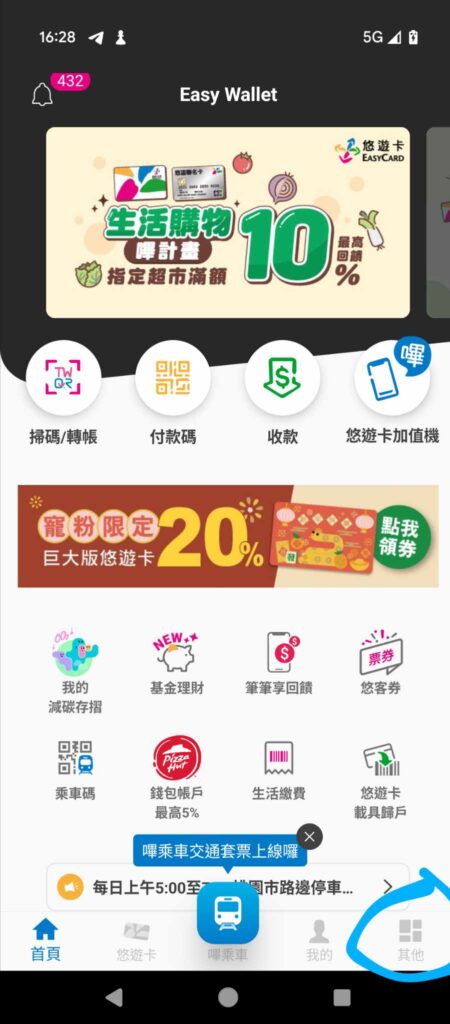
On the Easycard Wallet, hit the 其他 button on the bottom right:

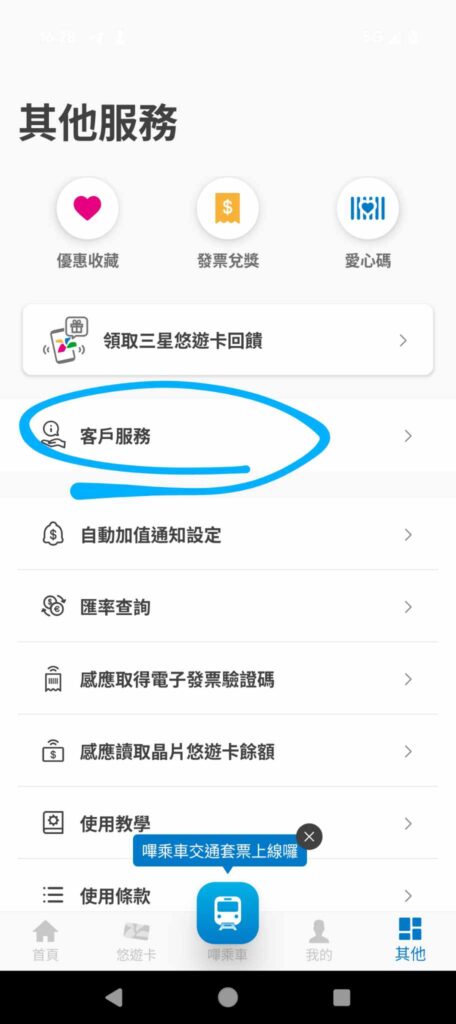
Click 「客戶服務」 (client services):

Continue reading

Selling Things Through Family Mart

Not an expert at this, but a commenter asked for a guide to using Family Mart to sell things. I’ve never sold on the platform, but thought I’d try and help out.

The main website is here.

If you’re selling something, you’ll want to click on 賣家專區 (Seller Section) highlighted in red below:

78852963_432105811064472_3013637758280269824_n

You’ll get an error message and will be redirected to this page, prompting you to register/login. The page asks you to enter your phone number as below:

76917362_433885400836442_4556499661518536704_n

Once you enter it, they’ll send an SMS to your phone to prove you’re the owner of the phone, and then they’ll prompt you to set a password for your account.

Next up is this page:


76917362_433885400836442_4556499661518536704_n

This is easy enough, just fill in your account name (should be the name on your bank account), make sure you select 「外籍人士」 then fill in your ARC in the ID section, then select your bank, branch (your branch code is normally the first few numbers of your account no. for E Sun bank account holders) and fill in your account no.

The second bit of this page, is for those who want to be able to have credit card payments received on their behalf. So you can sign up for ECPay (綠界科技)for free if you want:

76917362_433885400836442_4556499661518536704_n

I’m not going to sign up for that for this demo, but partner banks are listed here.

After that you’ll get a message telling you to check your account name in case there are any errors, but there should be a follow-up message congratulating you for setting up a store. Then you’ll come to the personal information disclosure screen. It will ask for your name, your email (twice) and at the bottom it will ask you if you’re willing to disclose your personal information. (The first option is disclose individual info, the second is disclose company info and the third is don’t disclose – which will be highlighted in blue and is the default choice):

未命名

From here, you can add a store:

未命名

From here, you’ll be able to name your store:

未命名

Then you can list your products:

未命名

You’ll be prompted to fill in information about the product you wish to sell:

未命名

Once you sell something, I’m assuming you get follow-up instructions.

Anyway, that was for Sue, if you have any follow-up questions, feel free to write again.

Order and Pay for or Donate Masks Online and Check your Medical History with the NHI App 用全民健保行動快易通app買口罩註冊辦法

Germany

36th Round:
Order and payment: June 14-16
Collection: June 21-July 4

**Update the new update of the app now has a COVID-19 (NHI-funded) vaccine appointment platform. It’s still under construction, but watch this space.**

I discovered this app a while back, but it wasn’t really of much use to me until I heard the news that you can order masks through it on a weekly basis. The app essentially provides you information about your medical history and medications prescribed you online, and they’ve added information about all the tests you’ve undergone through the years in English (See Extra Credit section below to explore this content). It also provides reminders about scheduling your next dentist appointment, but previously, the app was buggy and not incredibly interesting, so I didn’t blog about it at the time. The process of getting your device verified is also quite complex and involves a card reader, so I didn’t think there’d be too much appetite for a post about it, but maybe the online ordering system and the added info will change that a bit. (Note, you can also order at an iBon/Famiport/other machine in convenience stores and pay at the counter.)

After downloading the app 「健保快易通」(Google Play) or here for Apple users (if you’ve already downloaded it, make sure you have the latest version). You then have to go to the website to verify your identity with a (ATM-style) card reader (you can buy them on PCHome here).

After you’ve installed the card reader, head to their website, if you’re a Windows user, you’ll need to download their Windows installer, or MAC Installer, (others available here). You can check if your card is being read properly here.

If it’s working, you should get a message like this:

76917362_433885400836442_4556499661518536704_n

You’ll also have to mark your server as a trusted server here (or click on 「設定伺服器為可信任服務」(set as a trusted server) on this page). You’ll have to be an administrator on your computer to do this.

Now, you can get on with verifying your mobile app.

First-time users should click the box labeled 「首次登入請先申請」(First-time users, please apply here first), which I’ve marked with a red box below:
(Note they’ve now added English to the website too.)

76917362_433885400836442_4556499661518536704_n

This will take you to a list of terms that you can click agree on:

Continue reading